
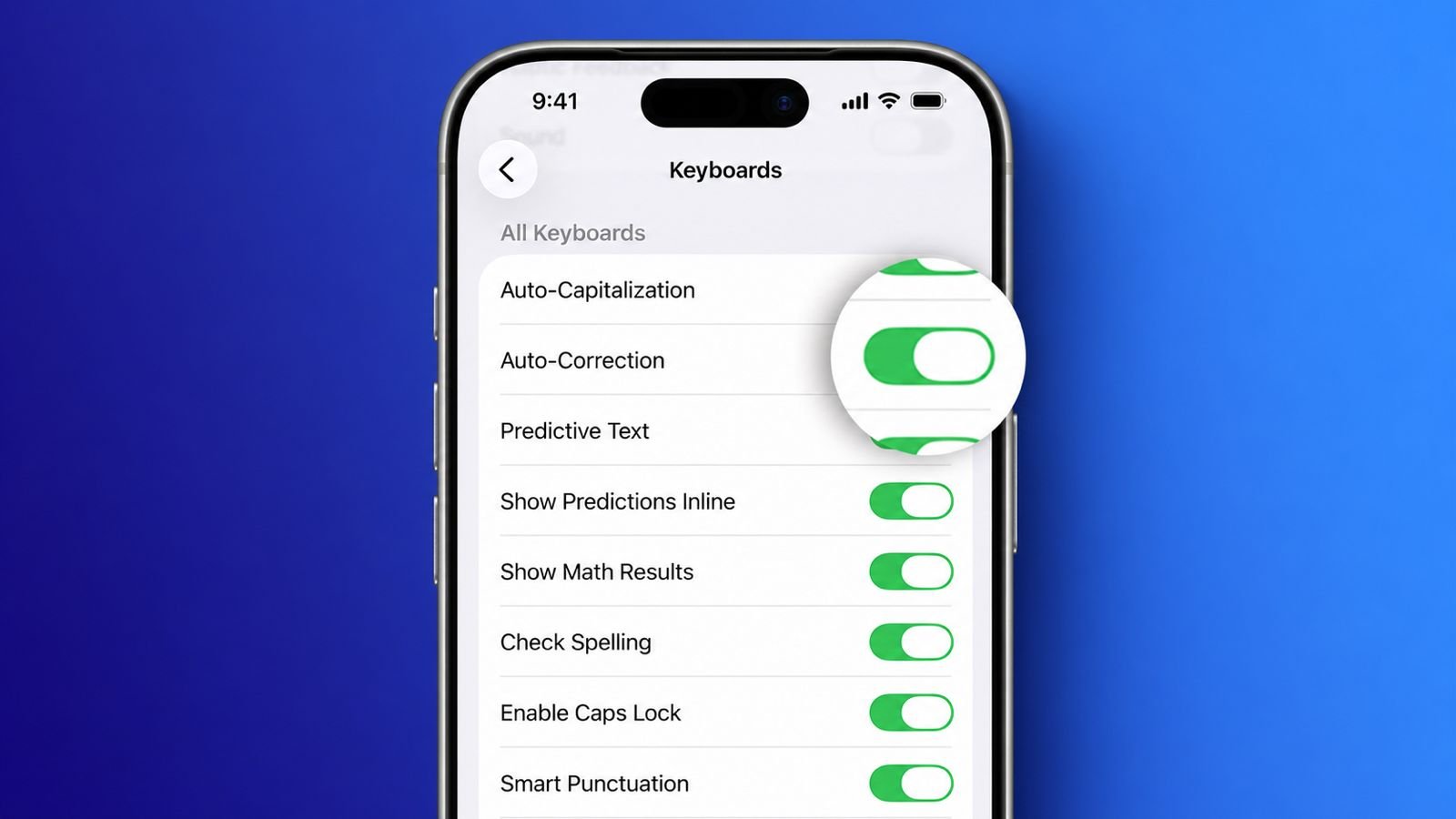

Predictive Text feature on iPhone usually makes everyday typing much easier. However, incorrect suggestions can become extremely frustrating.
They may even change your intended message completely. Thankfully, iPhone offers simple controls for predictions.
Turn Off Predictive Text on iPhone
Predictive text helps you type words faster. It suggests words and phrases while you type. These suggestions appear above the onscreen keyboard. This area is commonly called the QuickType bar.
The feature learns from your regular typing. Your previous conversations can influence its suggestions. Your writing style can also affect predictions. Safari websites may influence some suggested words. This makes predictions more personalized over time.
However, personalized predictions aren’t always helpful. Sometimes, they suggest completely unrelated words. Other times, they change what you meant. This can become especially annoying during conversations.
If you prefer manual typing, disable predictions. The process only takes a few seconds.
Disable Predictive Text Through iPhone Settings
Follow these simple steps to disable predictions:
- Open the Settings app on your iPhone.
- Tap General from the main settings menu.
- Select Keyboard from the available options.
- Find Predictive Text inside keyboard settings.
- Tap the switch beside Predictive Text.
- Make sure the switch becomes gray afterward.
A gray switch means Predictive Text is disabled. The change applies across your iPhone keyboards. Therefore, supported apps follow this setting automatically.
For example, Messages uses these keyboard preferences. Mail follows the same keyboard settings too. Notes also follows these keyboard preferences.
Turn Off Predictive Text While Typing
You can change this setting while typing. This method can be faster for some users. Open an application containing a text field.
Messages and Notes are good options here. Tap inside the text field to open. Your iPhone keyboard should appear immediately afterward.
Now touch and hold the smiley button. You can alternatively hold the globe button. A small menu should appear above your keyboard.
Select Keyboard Settings from the available menu. Find Predictive or Predictive Text there. Then turn the setting off completely.
This method avoids opening the Settings application. It can save time during everyday typing.
What Happens After Turning Predictions Off?
Your keyboard stops showing predictive word suggestions. The gray QuickType bar also disappears afterward. This gives you slightly more screen space.
However, Auto-Correction can continue working normally. Predictive Text and Auto-Correction aren’t identical features.
Predictive Text: Suggests words and complete phrases.
Auto-Correction: Automatically fixes certain spelling mistakes.
Therefore, disabling predictions doesn’t disable corrections. Your iPhone can still change misspelled words. Some users prefer keeping Auto-Correction enabled. Others prefer controlling every word manually.
Fix Problems
Sometimes, suggestions may still appear afterward. This doesn’t always mean Predictive Text remains enabled.
Several different things can cause this behavior:
- Auto-Correction might still remain enabled.
- A third-party keyboard could show suggestions.
- Temporary keyboard data might cause unusual behavior.
- One specific application could behave differently.
You can troubleshoot these issues using simple steps. Start by checking your keyboard settings again.
Check Predictive Text and Auto-Correction
Open Settings and choose General first. Then select Keyboard from the available options. Check the Predictive Text setting carefully. Make sure its switch remains completely gray. Then check the Auto-Correction setting separately.
Remember, Auto-Correction controls spelling changes automatically. Predictive Text controls suggested words and phrases. If you want completely manual typing, disable both. This prevents suggestions and automatic spelling changes.
Restart Your iPhone After Changing Settings
A simple restart can sometimes fix keyboard problems. Restarting refreshes temporary system processes on
iPhone. It may also clear minor keyboard-related issues. After restarting, test typing across different applications.
Try typing inside:
- Messages
- Notes
- Other applications using text fields
This helps identify whether the problem remains. It also reveals app-specific keyboard behavior.
If suggestions appear inside one application only, that application could be causing the issue. Other applications may continue working normally.
Reset Your Keyboard Dictionary
Your iPhone keyboard learns from your typing. It can remember words you’ve entered repeatedly. Custom words can influence future keyboard suggestions.
Saved shortcuts can also affect automatic replacements. Resetting the keyboard dictionary clears this learned information.
Follow these steps to reset it:
- Open Settings on your iPhone.
- Tap General to continue.
- Select Transfer or Reset iPhone.
- Tap Reset to view available options.
- Select Reset Keyboard Dictionary.
- Confirm the reset when prompted.
This restores the keyboard dictionary’s original settings. Learned typing behavior gets removed during resetting. Custom words will also disappear from your dictionary.
Saved keyboard shortcuts can also get removed. Therefore, consider this option before resetting everything.
Check Third-Party Keyboards
Some users install third-party keyboard applications. These keyboards can provide separate prediction systems. Apple’s Predictive Text setting won’t control everything. The third-party keyboard may have separate settings.
Check your installed keyboards when suggestions continue. Try Apple’s default keyboard for comparison. This simple test can identify the actual source. You can then change that keyboard’s settings.
Hide The Keyboard Completely When Necessary
Turning off predictions doesn’t hide your keyboard. Sometimes, you may want more screen space. You can dismiss the keyboard using simple gestures. Swipe downward from your screen’s middle area.
Some applications provide a keyboard dismiss button. That button appears when supported by applications. Hiding the keyboard can make reading easier. It also provides more visible screen space.
Manage Shortcuts
Predictive Text isn’t the only automatic typing feature. iPhone also provides Text Replacement for shortcuts. Text Replacement automatically expands chosen shortcuts. This feature works separately from predictive suggestions.
For example, you could create a GM shortcut. Your chosen phrase could become Good morning automatically. This feature saves time with common phrases. It can be useful for frequently typed responses.
Create Your Own Text Replacement Shortcut
You can create shortcuts through keyboard settings.
Follow these simple steps:
- Open Settings on your iPhone.
- Tap General from the settings menu.
- Select Keyboard from available options.
- Tap Text Replacement to continue.
- Tap the Add button.
- Enter your complete phrase.
- Enter your preferred shortcut.
- Tap Save when everything looks correct.
Your shortcut becomes available after saving it. Type the shortcut inside a supported text field. Your iPhone will replace it automatically afterward.
Delete Unwanted Text Replacement Shortcuts
You can remove shortcuts whenever they’re unnecessary. Open Settings and choose General first. Then tap Keyboard and select Text Replacement.
Tap Edit to modify your existing shortcuts. Choose the shortcut you want to remove. Tap the Remove button beside that shortcut.
Then tap Delete to confirm removal. Finally, tap Done after completing these changes. This prevents unwanted phrase replacements while typing.
Understand Auto-Correction Before Disabling Everything
Auto-Correction works differently from Predictive Text. It checks words against your keyboard dictionary. The feature automatically fixes certain spelling mistakes.
Auto-Correction normally stays enabled by default. You can disable it whenever necessary. Go to Settings > General > Keyboard first. Then find the Auto-Correction option there.
Turn its switch off if preferred. Your iPhone will stop automatic spelling replacements. In iOS 17 and later, corrections appear. Corrected words receive temporary underlines during typing.
Tap an underlined word to edit it. A small menu then provides available correction choices. You can choose your original spelling again. This makes unwanted corrections easier to reverse.
Check Inline Predictive Text on iOS 18
Newer iOS versions provide additional prediction controls. iOS 18 includes inline predictive recommendations for typing. These recommendations can appear directly inside sentences. They work differently from the QuickType bar.
Therefore, changing one prediction setting may not suffice. Check keyboard settings for inline recommendations separately. Turn inline predictions off if you prefer. This provides a cleaner, manual typing experience.
Turn Predictive Text Back On Anytime
You can restore Predictive Text whenever you want. Open Settings, then choose General and Keyboard. Find Predictive Text inside the keyboard settings. Turn the switch back on again.
You can also change this while typing. Hold the smiley or globe button again. Choose Keyboard Settings from the displayed menu. Then enable Predictive or Predictive Text. Your keyboard will show suggestions again afterward.
As We Conclude
Turn Off Predictive Text on iPhone by Opening Settings, General, then Keyboard for control. Disable predictions using the available switch there. Check Auto-Correction separately for unwanted word changes.
Reset your dictionary when persistent problems continue. Manage shortcuts through Text Replacement when necessary. These settings provide better control over typing.