
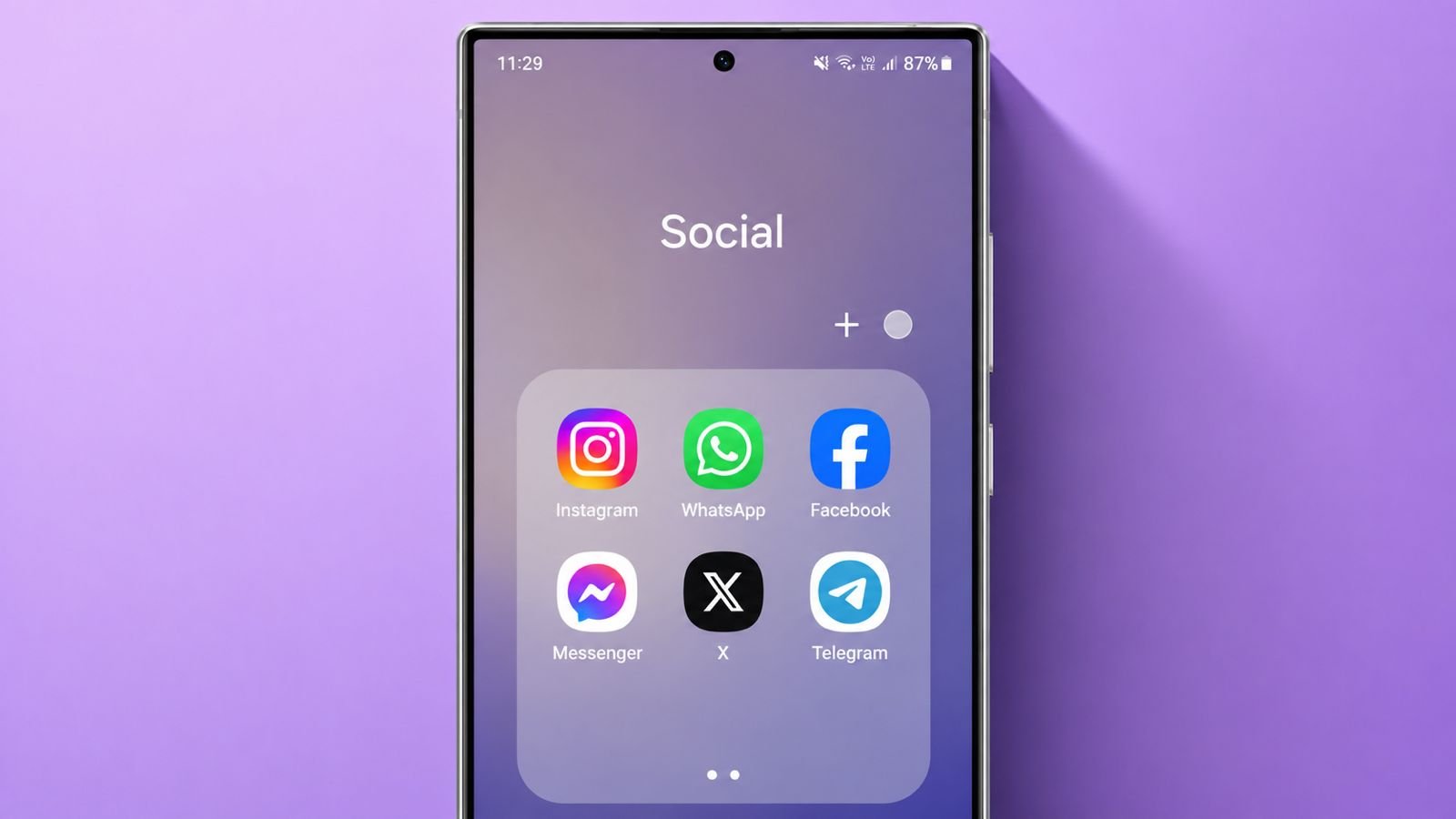

Make App Folders on Android to keep your screens organized. Many users install apps every week. Too many icons create unnecessary confusion.
Folders help arrange apps neatly. They also save space and improve navigation. Android makes folder creation quick and simple.
Make App Folders on Android in Easy Steps
Android phones can become crowded very quickly. New applications often appear on available screens. Finding specific apps becomes difficult over time. A simple folder system solves this problem.
Creating folders takes only a few moments. Most Android brands support this useful feature. Samsung, Google, Huawei, Xiaomi, and others work similarly.
Follow these simple instructions below:
- Press and hold an application icon.
- Wait until edit mode becomes active.
- Drag the app over another app.
- Release your finger after overlapping icons.
- A folder appears automatically on screen.
The selected apps now stay together. This reduces clutter across your home screen. It also makes navigation much faster. Folders are useful for many app categories.
Examples include:
- Social media applications
- Email applications
- Shopping applications
- Banking applications
- Entertainment applications
- Productivity applications
Grouping related apps improves daily smartphone usage. Users spend less time searching everywhere.
Why Folders Improve Organization
Many people install dozens of applications. Home screens quickly become crowded and messy. Finding important apps can waste time.
Folders create a cleaner and simpler layout. Related applications remain grouped together logically. This reduces visual distractions significantly.
A well-organized phone feels easier to use. Everything stays available within fewer taps.
Name Them Properly
After creating a folder, naming becomes important. Android usually leaves folders unnamed initially. Unlike some devices, no default title appears.
An unnamed folder shows no visible label. This can create confusion later. Naming folders improves recognition immediately.
To add a folder name:
- Press and hold the folder.
- Open the folder contents completely.
- Wait for the keyboard appearance.
- Type your preferred folder title.
- Tap the Done button afterward.
The chosen name appears below the folder. Some Android devices follow different steps. Samsung and Google Pixel devices vary slightly.
On these devices:
- Open the folder first.
- Tap the displayed folder name.
- Enter a new title.
- Save the updated name.
Choose names matching folder contents carefully.
Good examples include:
- Games
- Travel
- Work
- Shopping
- Music
Simple names make apps easier to locate. Users immediately understand folder contents.
Choose Clear Folder Labels
Avoid confusing or random folder names. Descriptive labels improve organization considerably.
For example, place email applications together. Then name that folder “Email.” This method helps identify apps quickly.
Consistent naming creates a better experience. Users spend less time opening folders unnecessarily.
Manage Apps Efficiently
Folders are not limited to two applications. You can add many more apps later. Android offers multiple methods for managing folders.
Add Apps Through Drag and Drop
This method remains extremely simple.
Follow these steps:
- Press and hold an app.
- Drag it toward a folder.
- Release it inside successfully.
The application immediately joins that folder. Repeat these steps whenever necessary. Many applications can share one folder.
Add Apps Using Folder Options
Some Android devices provide another option.
To use this feature:
- Open the folder completely.
- Select the Add Apps option.
- Choose desired applications carefully.
- Tap Add near the top.
The selected apps enter the folder instantly. This method works well for multiple additions.
Remove Apps From Existing Folders
Folder contents may need occasional updates. Some applications become unnecessary over time.
To remove an application:
- Open the desired folder.
- Press and hold the application.
- Select the removal option.
- Move the app outside the folder.
The app leaves the folder immediately. This keeps folders organized and relevant.
Understand Android Dragging Rules
Android allows several drag-and-drop actions. However, some actions remain unsupported.
You can perform these actions:
- Drag apps onto other apps.
- Drag apps into existing folders.
- Rearrange apps inside folders.
You cannot perform these actions:
- Drag folders onto applications.
- Place widgets inside folders.
Widgets work differently from normal applications. They run continuously on home screens. Therefore, widgets cannot function inside folders.
Sometimes an app moves unexpectedly while dragging. This usually means incorrect placement occurred. Try dragging directly onto another application.
Arrange Home Screens Better
Creating folders improves organization significantly. Moving folders improves convenience even further.
Move Folders Anywhere Easily
Folders move exactly like applications.
Follow these simple steps:
- Press and hold the folder.
- Wait for screen adjustments.
- Drag the folder elsewhere.
- Release it at the desired location.
Modern Android versions adjust automatically. Nearby icons move aside gracefully. This allows flexible home screen customization.
Place Folders on the Bottom Row
Many users prefer quick app access. Android allows folders on the bottom row.
This location remains visible across screens. Important applications stay available immediately.
Popular folder choices include:
- Google applications
- Communication applications
- Work applications
- Daily-use applications
Google often demonstrates this approach. Its apps frequently appear grouped together. This setup reduces navigation time greatly.
Delete Folders Without Removing Apps
Folders sometimes become unnecessary later. Android provides simple deletion methods.
First method:
- Open the folder completely.
- Drag all apps outside.
- The folder disappears automatically.
Second method:
- Press and hold the folder.
- Drag it toward Remove.
- Release the folder there.
The folder disappears from view. Importantly, applications remain installed afterward. Only the folder gets removed.
No apps are deleted accidentally. This makes folder removal completely safe.
As We Conclude
Make App Folders on Android for better organization. Folders reduce clutter and improve navigation. They help users find applications faster.
Creating, naming, moving, and deleting folders remains simple. A well-organized Android device saves time every day.