
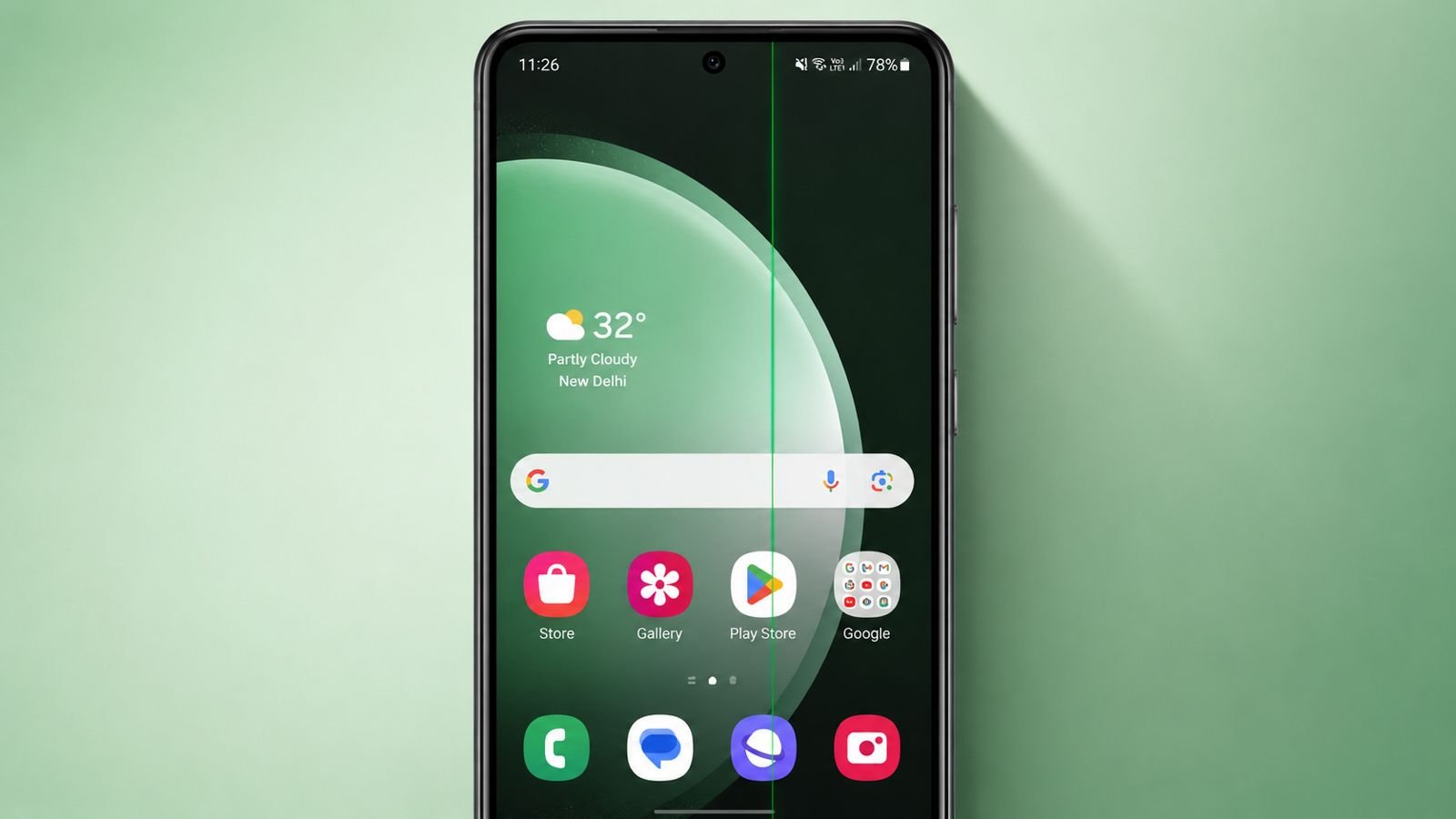

Solve Green Line Issue on Android if screen problems appear suddenly. Many users see green lines after updates, drops, or water exposure.
The issue can affect visibility and daily phone use. Understanding causes and fixes helps restore normal screen performance.
Understand Causes and Symptoms of Green Line Issue on Android
Green lines are common smartphone display problems today. This issue affects devices from almost every brand.
The phone may continue working without difficulties. However, a visible green line remains displayed. The issue may appear in different forms.
Common Signs of Green Line Problems
- A thin green vertical line appears
- A green line flickers occasionally
- Green lines appear with black marks
- Multiple colors appear beside green lines
- Screen works normally despite green line
- Green streaks remain permanently visible
Some users notice only one green line. Others may see additional colors or marks.
The problem can appear suddenly without warning. Sometimes it develops after updates or accidents.
Main Causes Behind Green Line Issues
Several reasons can create this display problem.
Loose Display Connector
The display connector may become loose internally. This interrupts communication between display components.
Damaged Display Connector
A damaged connector can create visible screen issues. Vertical green lines often appear afterward.
Water Damage
Water entering the device affects sensitive parts. Screen performance may suffer because of moisture.
Impact Damage
Accidental drops can damage display components internally. Screen problems often appear after strong impacts.
Cracked Screen Problems
If green lines appear with damage, trouble exists. Cracked screens often show multiple display colors. Black spots may also become visible.
Incompatible Applications
Some applications do not work correctly everywhere. They may create unusual display behavior sometimes.
Incorrect Device Configuration
Certain settings can affect display performance negatively. Wrong configurations may create unexpected screen problems.
Software Errors
Android software bugs sometimes trigger display problems. System updates usually solve these software issues.
Understanding the exact cause remains very important. Software issues need different fixes than hardware damage.
Try Basic Software Fixes
Always start with simple troubleshooting methods first. Many users solve the issue without repairs.
Restart Your Phone Completely
Restarting fixes many temporary software problems quickly. Turn off your phone completely before restarting. Do not simply switch off the screen.
Wait several seconds before turning it on. Restarting closes active processes and applications. It refreshes phone functions and operating systems.
Temporary software glitches may disappear afterward. If the green line resulted from software, restarting may solve the issue immediately.
Remove Recently Installed Applications
Think about applications installed before trouble starts. A newly installed application may cause conflicts.
Uninstall recent applications one at a time. Check the screen after every removal. If the green line disappears, the app causes problems.
Also reverse recent settings changes if possible. Incorrect settings sometimes affect display behavior unexpectedly.
Restart the Device in Safe Mode
Safe Mode loads only essential Android services. Third-party applications remain disabled in this mode.
This method helps identify software-related causes effectively.
If the green line disappears in Safe Mode, software likely caused the problem.
Possible causes include:
- Recently installed applications
- Problematic device settings
- Android operating system errors
- Application compatibility issues
Safe Mode helps narrow down possible reasons. It is one of the most useful tests.
Check Whether Safe Mode Solves Issues
Observe the screen carefully in Safe Mode. Use the phone normally for some time.
If the display looks normal there, software remains responsible. You should inspect installed applications carefully afterward.
Update and Reset Your Device
Software updates often fix known smartphone problems. Manufacturers release updates regularly for improvements.
Update Your Android Device
Check whether a newer Android version exists. Follow these basic steps:
- Open the Settings application
- Select the System section
- Choose System Update option
- Search for available updates
- Install updates if available
Steps may vary between smartphone brands slightly. If a new update appears, install it. Manufacturers often fix display-related software issues. Restart the phone after installation finishes.
Confirm Update Status
If updates are unavailable, a message appears. The message usually states the system remains updated.
Even when updated, continue other troubleshooting methods. Another issue may still exist elsewhere.
Consider Recent Update Problems
Sometimes updates create unexpected display issues. The green line may appear afterward suddenly.
If the issue started after updating, consider options. Returning to an earlier software version may help.
The latest update may contain software bugs. Many users report improvements after restoring defaults.
Perform a Factory Reset
Factory reset remains the strongest software solution.
This process removes:
- Photos
- Videos
- Documents
- Applications
- Messages
- Personal files
A fresh Android installation replaces existing software.
Create a Backup First
Always back up important files beforehand. Store your photos and documents safely elsewhere.
Backups prevent permanent data loss during resetting. Skipping backups can create serious inconvenience later.
What Happens After Factory Reset
The reset removes software-related problems completely. It restores factory conditions on the device.
After resetting, check whether green lines remain. Avoid installing applications immediately afterward.
If Green Lines Disappear
Software caused the issue originally. The fresh installation successfully fixed the problem.
If Green Lines Remain
Hardware failure likely exists inside the phone. Software fixes cannot repair damaged components.
Hardware Repairs and Professional Help
When software fixes fail completely, hardware inspection becomes necessary.
Signs of Hardware Damage
Several signs indicate hardware-related issues.
- Green line remains after factory reset
- Device suffered accidental drops
- Phone experienced water exposure
- Display shows black marks
- Multiple colors appear on screen
- Screen damage remains visible
These symptoms usually require professional assistance.
Possible Hardware Problems
Several hardware faults may create green lines.
Damaged Display Panel
The screen itself may have failed internally.
Broken Display Connections
Connectors linking display and motherboard may break.
Water-Damaged Components
Moisture can damage internal display circuits permanently.
Impact-Related Damage
Strong impacts often damage display hardware components.
Contact the Manufacturer
Manufacturer support should be your next step. If warranty coverage remains active, benefits exist.
The manufacturer may:
- Repair the device free
- Replace the smartphone free
- Inspect the issue professionally
- Provide authorized repair solutions
Warranty support often reduces repair costs significantly.
Visit a Qualified Repair Technician
Professional technicians can inspect internal components carefully.
They can:
- Check display connections
- Test screen functionality
- Replace damaged connectors
- Install replacement screens
- Repair internal hardware issues
Sometimes only a loose connection exists. Other cases require complete screen replacement.
Back Up Data Before Repairs
Always create backups before sending devices away. Repair procedures may involve resetting the phone.
Protecting important files prevents future problems. Backing up data remains a smart precaution.
As We Conclude
Solve Green Line Issue on Android by starting with simple fixes first. Restarting, Safe Mode, updates, and factory reset can solve software problems.
If green lines remain, hardware damage likely exists. Professional repair support can help restore proper screen functionality.