
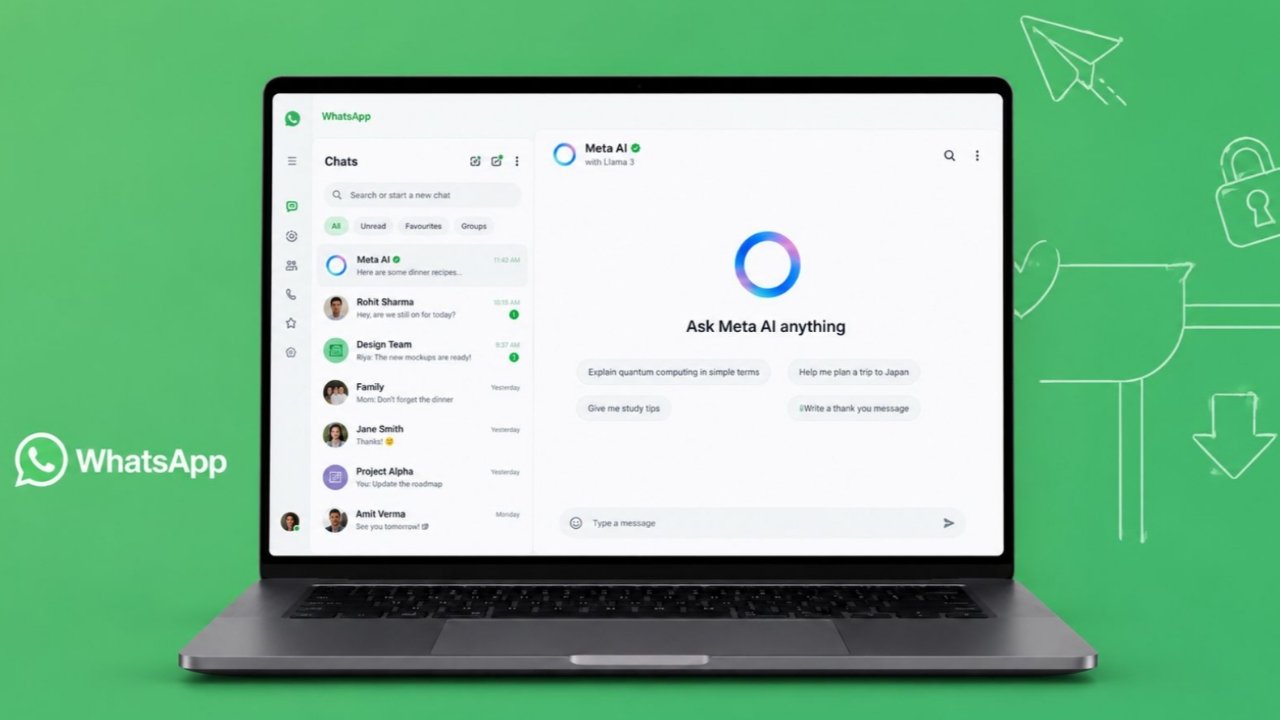

Use Meta AI on WhatsApp Web for daily tasks. Meta has added powerful AI tools everywhere.
Users can ask questions and create content. The feature works directly inside WhatsApp chats.
Meta AI on WhatsApp Web: Understanding Meta AI Features
Artificial intelligence tools are becoming very popular. Many people now use AI every day. These tools help users find information quickly. They also help complete many daily tasks.
Meta has invested heavily in artificial intelligence. The company developed its own AI technology. This technology powers the new Meta AI assistant.
Meta AI runs on the LLaMA 3 model. This advanced model understands many user requests.
It can answer questions and provide explanations. It can also create useful content quickly. Meta AI is available across many platforms.
These platforms include:
- Messenger
- Meta AI portal
Users can access AI without leaving applications. This creates a faster and smoother experience.
Everything happens directly inside chats and feeds. Meta AI can perform many useful activities.
Some important capabilities include:
- Answering questions
- Explaining topics
- Generating content
- Solving simple calculations
- Searching information
- Creating images
- Having natural conversations
The assistant provides detailed and informative responses. It also maintains a friendly conversation style.
Most answers come from Meta’s AI model. Sometimes information requires current online data.
In those situations, Meta AI accesses internet resources. This helps provide better and relevant answers.
The feature helps users save valuable time. It also reduces switching between applications frequently.
Examples of Questions You Can Ask
Meta AI supports many different requests.
Users can ask questions like:
- What is the capital of India?
- What does artificial intelligence mean?
- What is 10 plus 95?
- What is 100 USD in INR?
- Write a short poem about the sun.
The assistant quickly generates helpful responses.
Search Assistance Inside WhatsApp
Meta AI also improves searching functionality. Users can use WhatsApp search features normally. At the same time, AI can answer questions.
The first interaction may display suggestions. It can recommend useful questions for users. Regular search functionality remains available.
Users can still search:
- Messages
- Photos
- Videos
- Links
- GIFs
- Audio files
- Polls
- Documents
This makes information easier to find.
Step-by-Step Access
Meta AI can be accessed through WhatsApp Web. The process is simple and user-friendly.
Users must first connect WhatsApp properly. After linking devices, AI becomes accessible.
Method One: Using the Meta AI Icon
Follow these simple steps carefully.
Step 1: Open WhatsApp Web on your computer.
Step 2: Log into your WhatsApp account.
Step 3: Use the Link a Device option.
Step 4: Wait until synchronization completes successfully.
Step 5: Look at the left navigation panel.
Step 6: Find the Meta AI icon.
Step 7: Click the Meta AI icon.
Step 8: Start a new AI conversation.
Step 9: Ask questions or assign tasks.
Step 10: Read the generated responses.
This method provides direct access immediately.
Method Two: Using the /meta Command
Another method also works very well.
Follow these steps:
Step 1: Open WhatsApp Web normally.
Step 2: Select any existing chat window.
Step 3: Click inside the message field.
Step 4: Type the command /meta.
Step 5: Alternatively click the Meta symbol.
Step 6: Activate the AI assistant.
Step 7: Enter your question or task.
Step 8: Press Enter to send.
Step 9: Wait for the AI response.
The assistant quickly generates useful information.
Access Across Multiple Devices
Meta AI works across connected devices. Users can start conversations on smartphones. Later, they can continue conversations elsewhere.
For example:
- Start chatting on Android
- Continue using WhatsApp Web
- Access conversations on Desktop
This synchronization improves overall convenience greatly.
Image Generation, Groups, and Troubleshooting
Meta AI includes several advanced features. These features improve user productivity significantly.
Generate Images Using AI
Image generation remains a popular feature. Many online image generators require subscriptions. Meta AI currently offers image generation directly.
Users can create images using prompts. The process is very simple.
Type the command:
- /imagine followed by your prompt
Examples include:
- /imagine a college student riding a scooter
- /imagine a modern technology company logo
- /imagine a beautiful mountain during sunrise
Meta AI creates images using descriptions provided. This feature adds extra value for users.
Using Meta AI on Android
Android users can access Meta AI easily. Follow these instructions:
- Update WhatsApp completely
- Open the application
- Locate the Meta AI icon
- Find it near chat options
- Tap the icon
- Start chatting immediately
The icon generally appears near messaging controls.
Using Meta AI on iPhone
iPhone users can follow similar steps.
The process includes:
- Update WhatsApp to latest version
- Open the application
- Locate the Meta AI icon
- Find it near camera options
- Tap the icon
- Begin a conversation
Users can ask questions immediately afterward.
Using Meta AI in Group Chats
Meta AI also works inside group chats. This feature creates collaborative conversations. All participants can view AI responses.
Follow these steps carefully:
Step 1: Open your desired group chat.
Step 2: Tap the message field.
Step 3: Type the @ symbol.
Step 4: Select Meta AI.
Step 5: Read terms if prompted.
Step 6: Accept the required terms.
Step 7: Enter your question.
Step 8: Send the message.
Step 9: Wait for the response.
Meta AI replies directly within groups. Everyone can read generated answers easily.
Replying to Meta AI Messages
Users can continue conversations naturally.
To reply:
- Hover over AI response
- Open available menu options
- Click the Reply option
- Enter your follow-up question
This helps maintain conversation flow.
What If Meta AI Does Not Appear?
Some users may not see Meta AI. Several reasons can cause this issue.
Check for Updates
Always update your operating system first. Also update WhatsApp from official stores.
Use:
- Google Play Store
- Apple App Store
New updates often include Meta AI support.
Clear Android Cache
Android users may clear application cache. This may help resolve minor issues. However, results are not always guaranteed.
Wait for Gradual Rollout
Meta releases features in phases. Some users receive updates earlier. Others may receive updates later.
Your friend may already have access. Meanwhile, your account may still be waiting.
Verify Country Availability
Meta AI availability varies by region. Ensure the feature supports your country. Availability continues expanding gradually worldwide.
As We Conclude
Use Meta AI on WhatsApp Web for convenience as it answers questions and creates content.
It generates images and supports group chats. With cross-device access, Meta AI improves communication daily.